Part 1
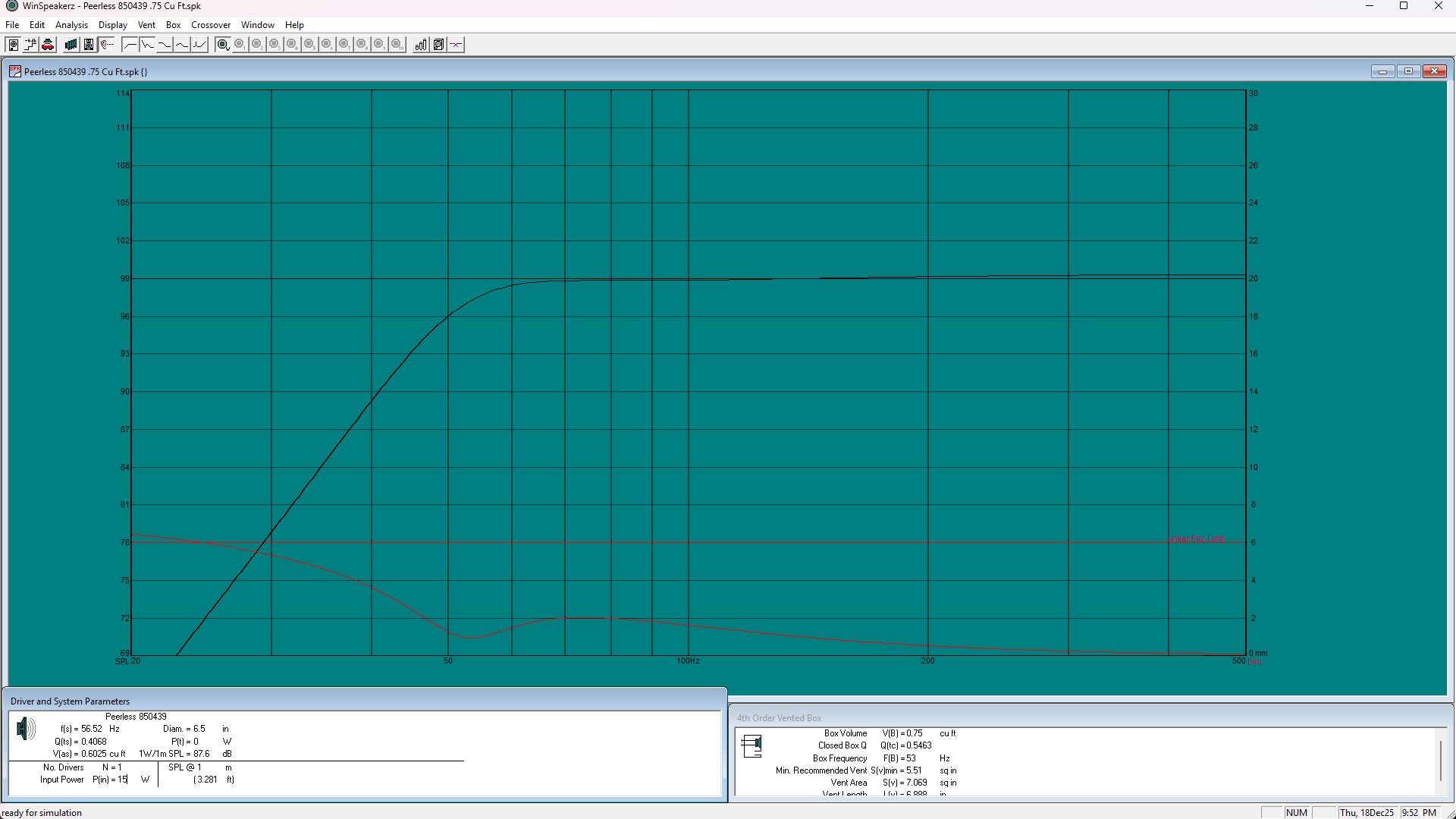
The Dactives (Dayton Audio Actives) were the speakers I brought to IowaDIY 2025. These used vintage (2003) Peerless HDS 850439 6.5" woofers and SB Acoustics SB19ST-C000-4 tweeters powered with a Dayton Audio KABD-430 board. This board features a 4 x 30-watt amp, DSP and Bluetooth. The cabinet is .7 cu. ft. with a 3” port tuned to 48Hz.
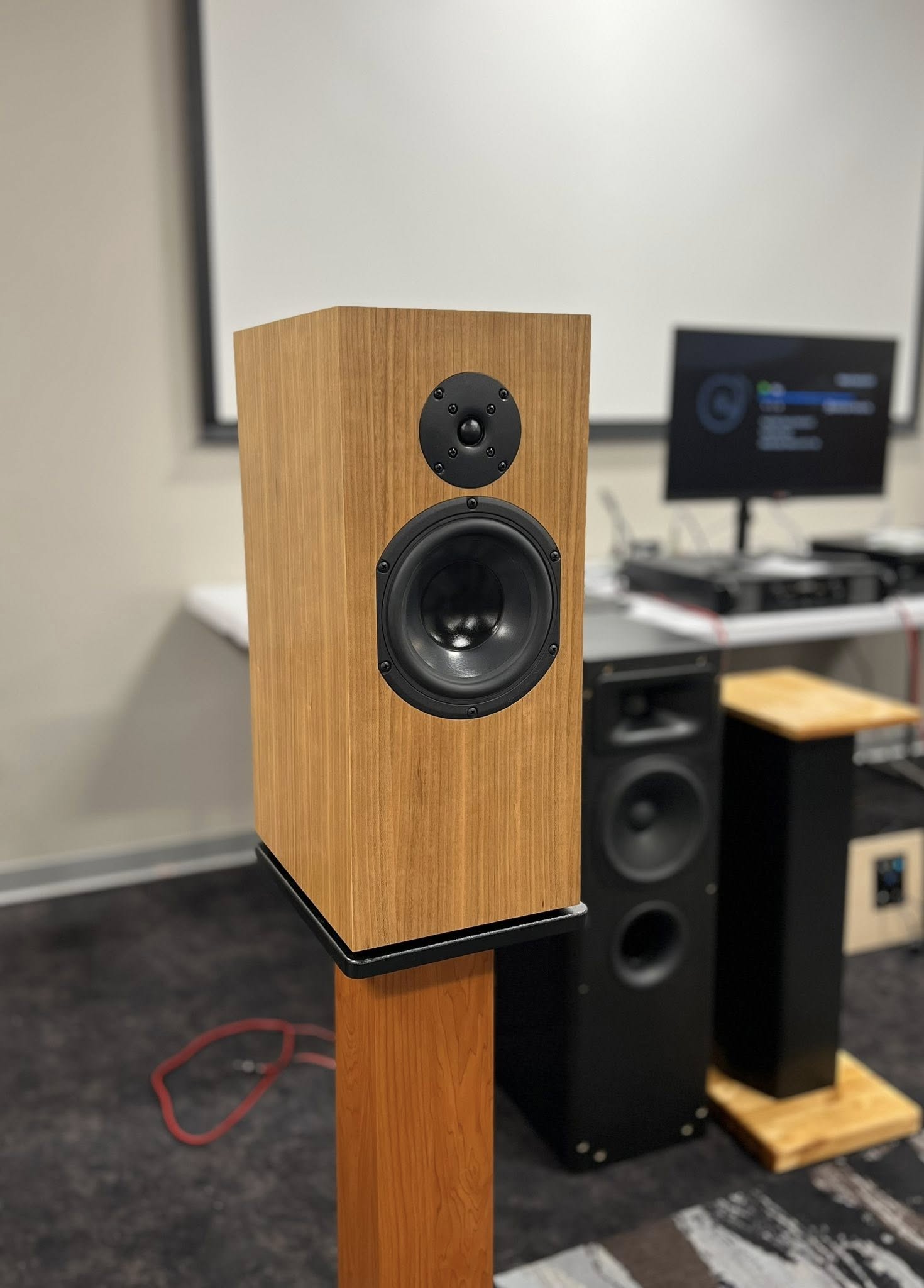
I’m going to skip the details of the box construction and focus on using the Dayton KABD-430 board. I purchased the board in October 2023 for $65 and didn’t get around to using it until last year at which point I ran into problems. I dug into it again this year and after a few calls to PE tech support I got it running.
Parts:
https://www.parts-express.com/Dayton-Audio-KPX-In-Circuit-Programmer-USB-325-139?quantity=1
You will need one of the following. I recommend the Panel Mount. The power cable that comes with the board doesn’t have a female connector which the Panel Mount kit has.
Type C USB cable.
Documentation and software:
https://www.parts-express.com/pedocs/manuals/325-430–dayton-audio-kabd-430-manual.pdf
SigmaStudio Download
SigmaStudio Example Files
You should read all the documentation, extract the example files from the zip file and install SigmaStudio
What follows is how to modify a sample file to run a basic 2-way speaker. There are other more complex samples that can be modified which saves you trying to build your own setup in SigmaStudio.
Note: In order to program the amp board connections have to made in a specific order.
Setting up the programmer card:
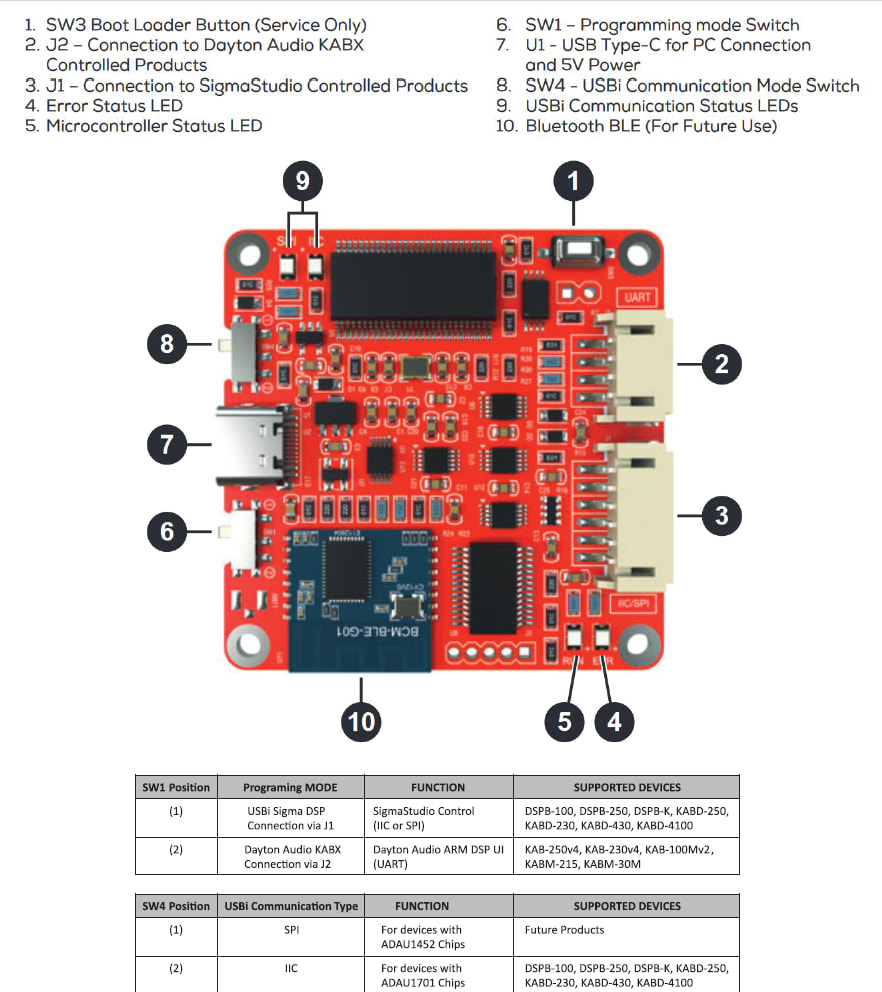
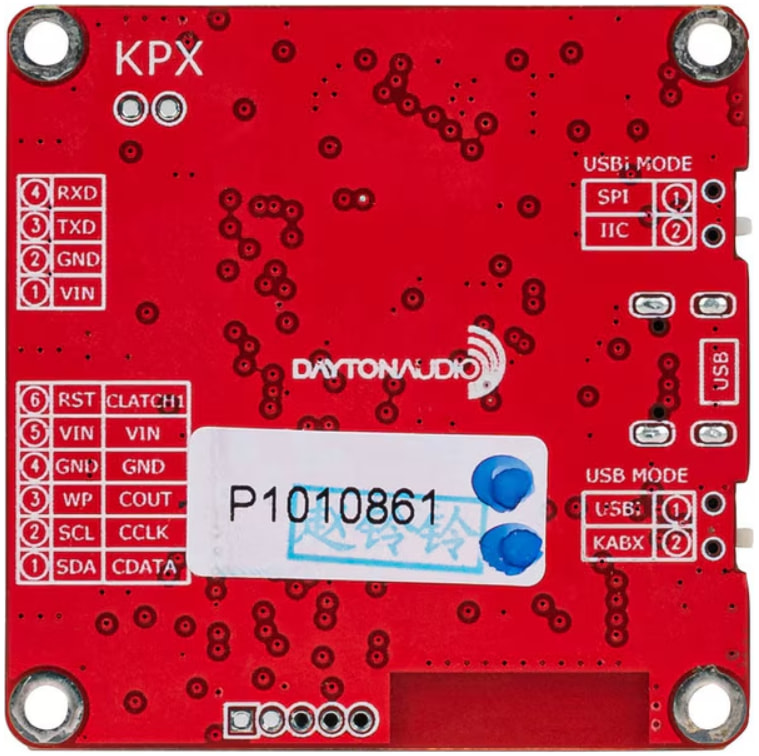
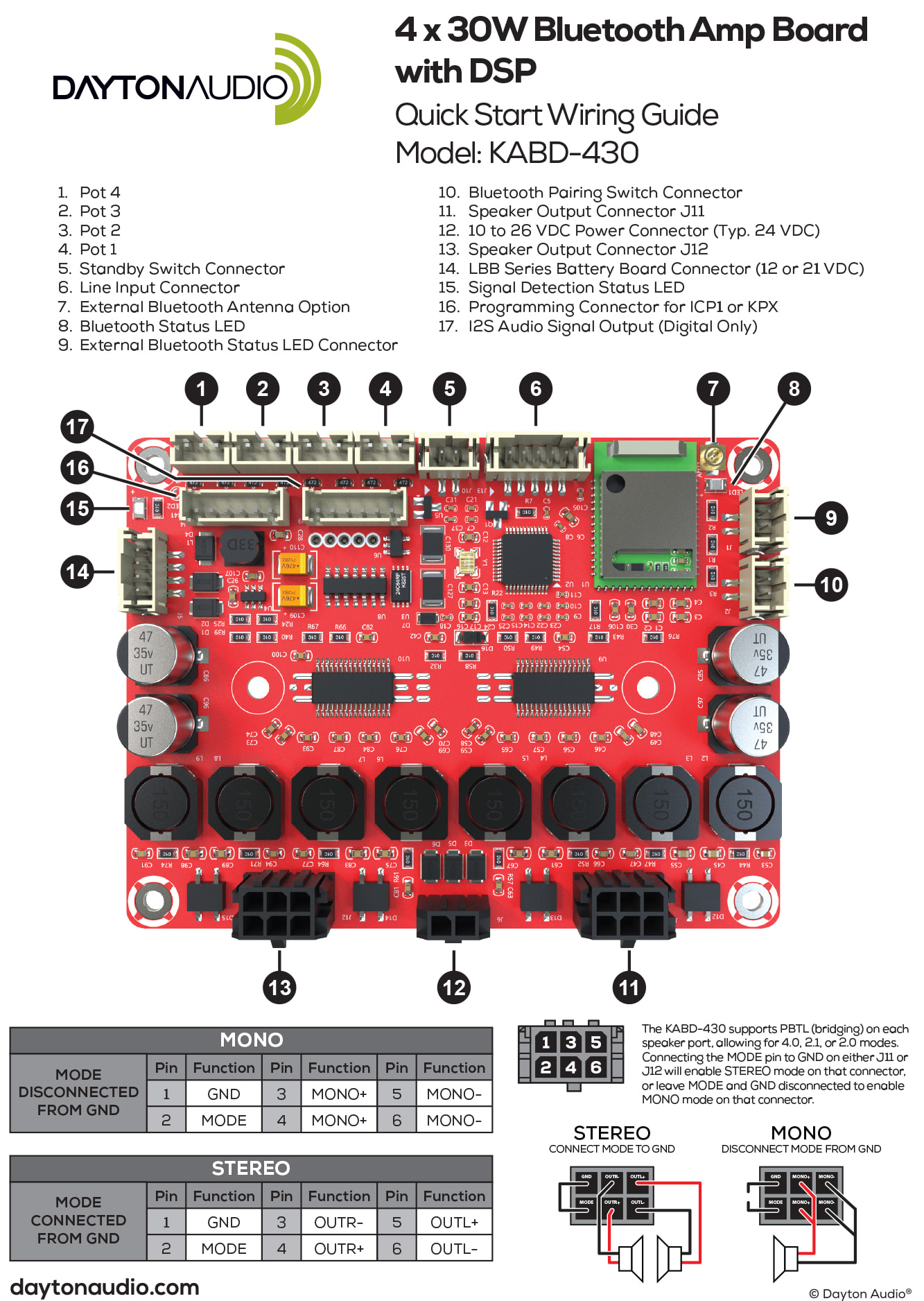
There are two switches on the card that need to be in the correct position. They’re labeled 6 and 8 on the quick reference page which are switch 1 and switch 4 respectfully. There are labels on these switches on the bottom of the board and switch 1 is labeled USB Mode and should be set to USB1. Switch 4 is labeled USBi and should be set to IIC. Once you have the switches set you can connect the board to your PC which should have SigmaStudio running with a USB cable. When powered the RUN (#5), and II2 (#9) LED’s should be green and ERR(#4) should be red. PE tech support said they didn’t even know why the ERR LED was there because they get calls, including mine, all the time. Ignore it.
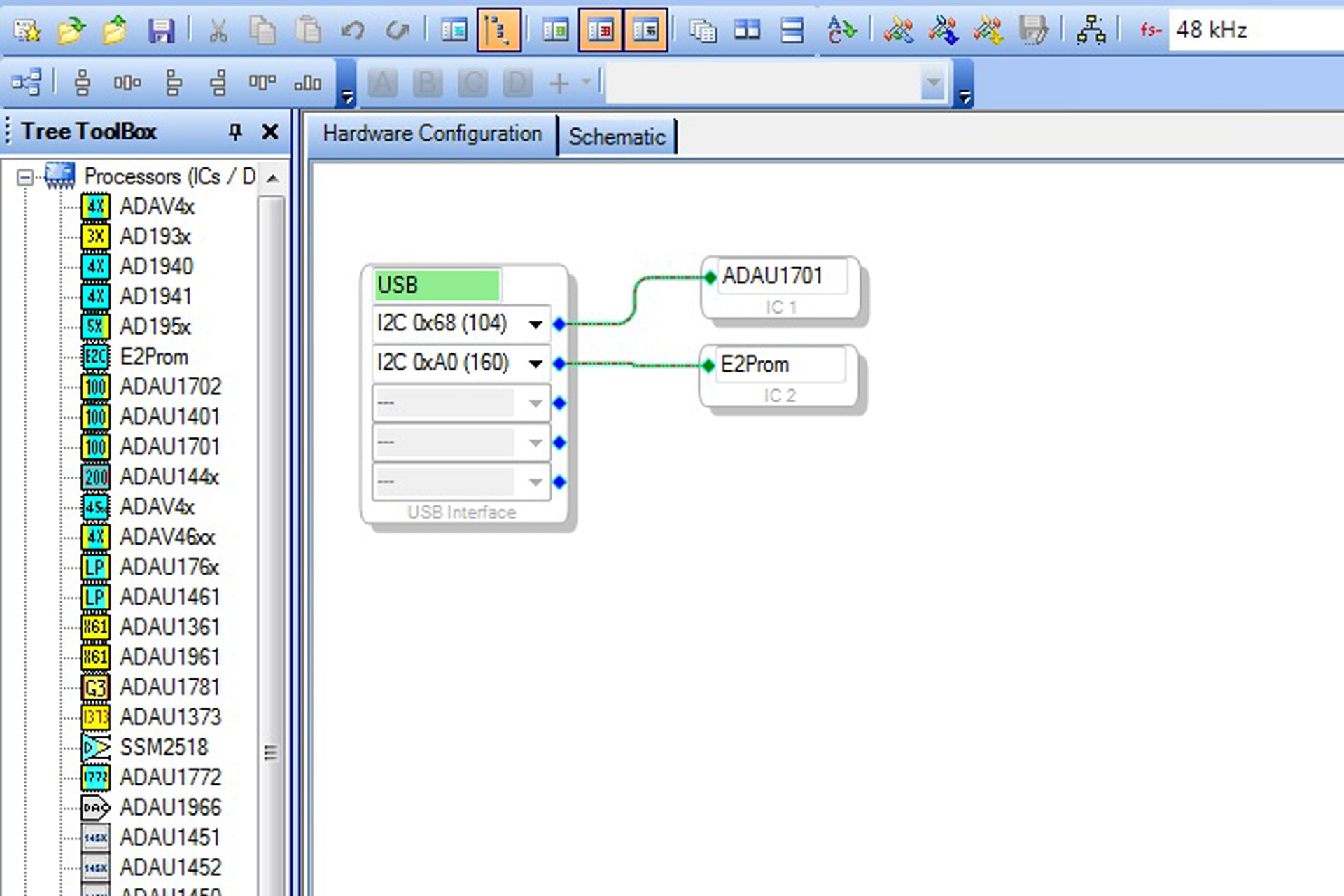
If everything is correct you should see a green USB symbal under the Hardware Configuration tab in SigmaStudio. This indicates the SigmaStudio can communicate with the programmer board.
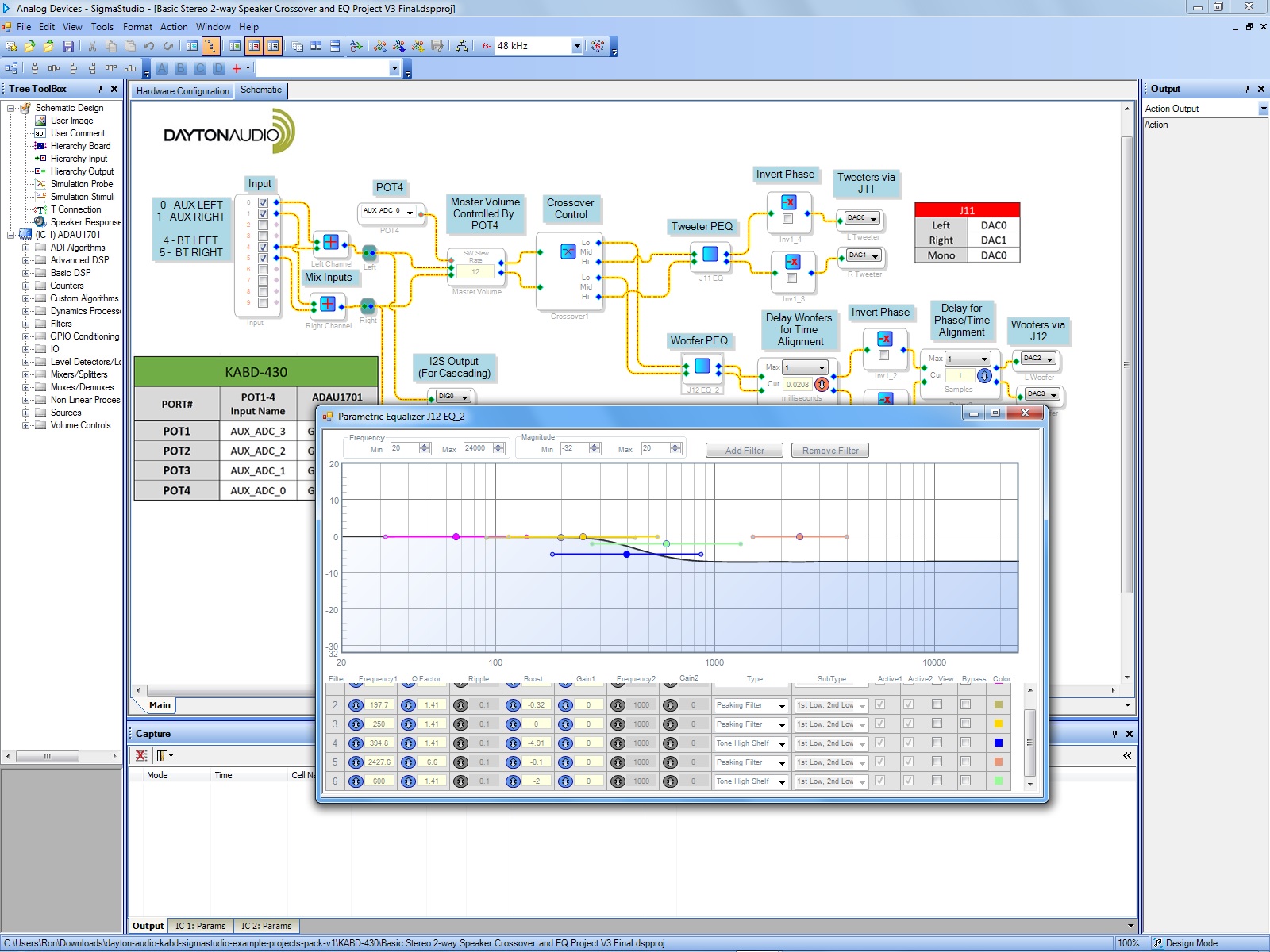
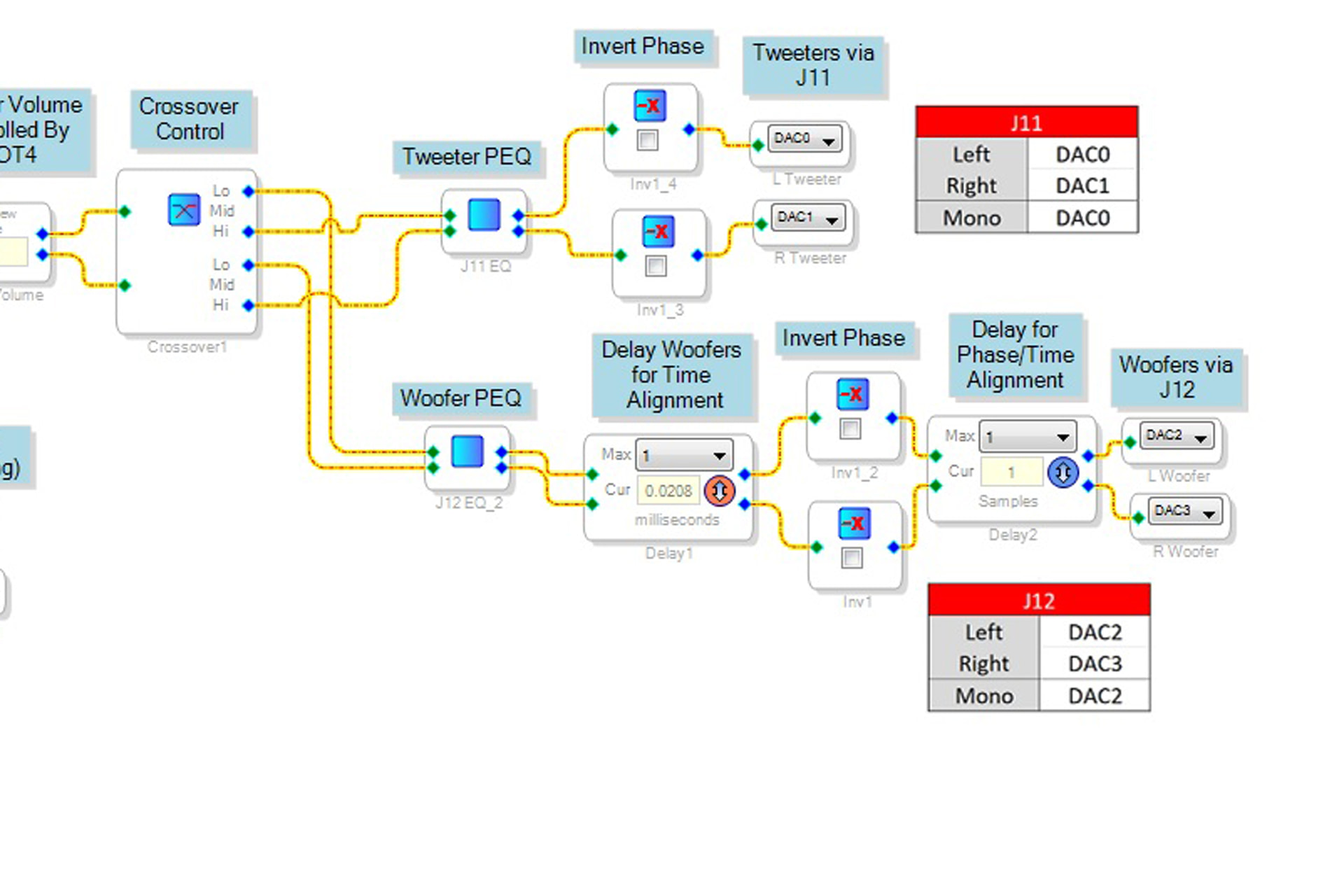
The next thing I did was open the “Basic Stereo 2-way Speaker Crossover and EQ Project” sample file from the “dayton-audio-kabd-sigmastudio-example-projects-pack-v1\KABD-430” folder. The first thing you should do is change the “Delay Woofers For Time Alignment” max value from 23 to 1. That setting is out of range and will drive a memory error. It’s the reason I initially set the board aside. PE tech support knew all about this problem and why someone doesn’t edit the file and resave it I don’t know.
The next thing I did was attach all the cables needed and powered up the KABD board and connected a 6-conductor cable from the programmer card to the Programing Connector (#16) on the KABD board.
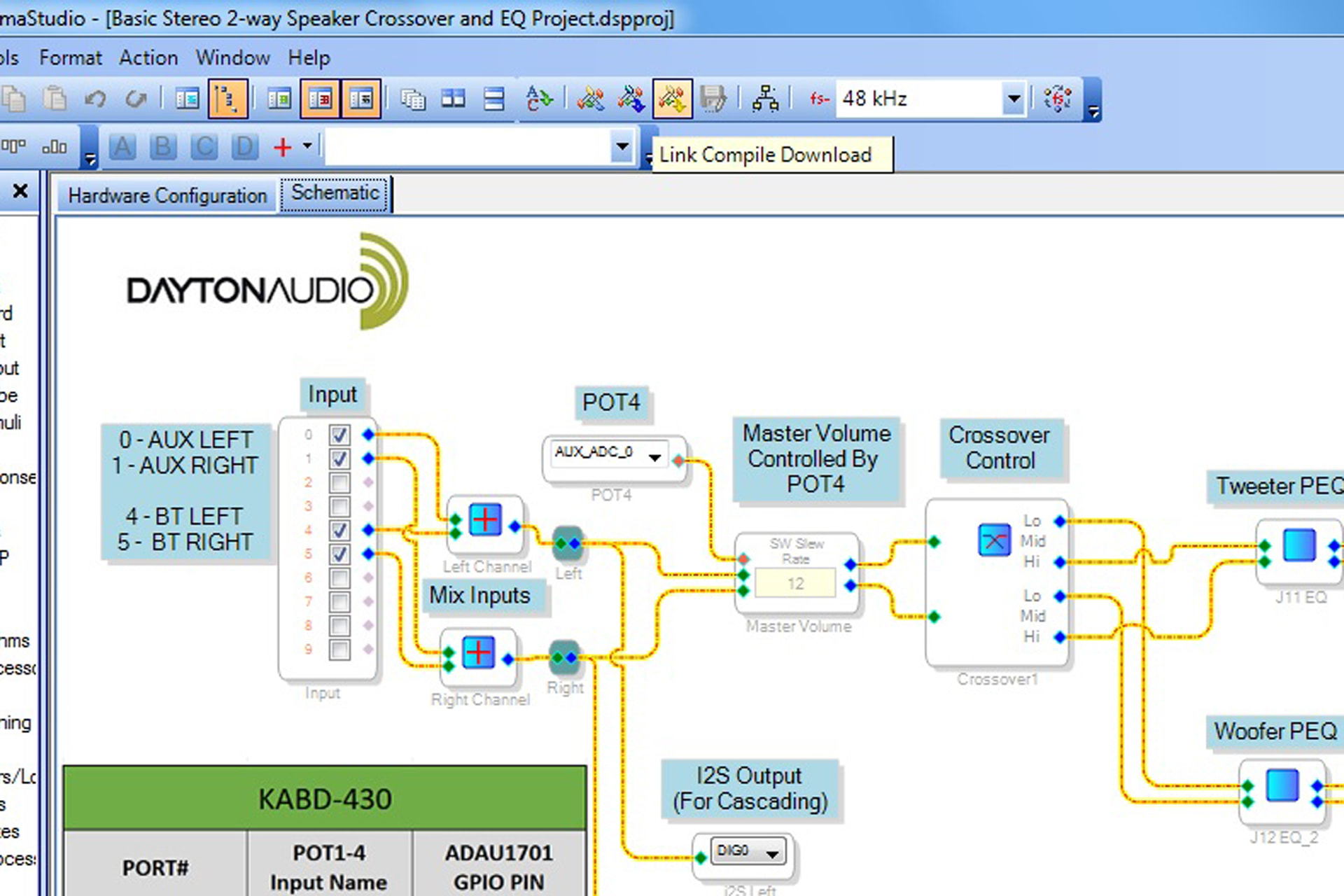
Once the programmer card and the KABD board were connected in order I clicked on the “Link Compile Download” button.
This is where I originally had problems and got a memory error message. After fixing the sample file it loaded the file to the KABD board successfully as indicated by an “Active Downloaded” message at the bottom right corner of the screen.
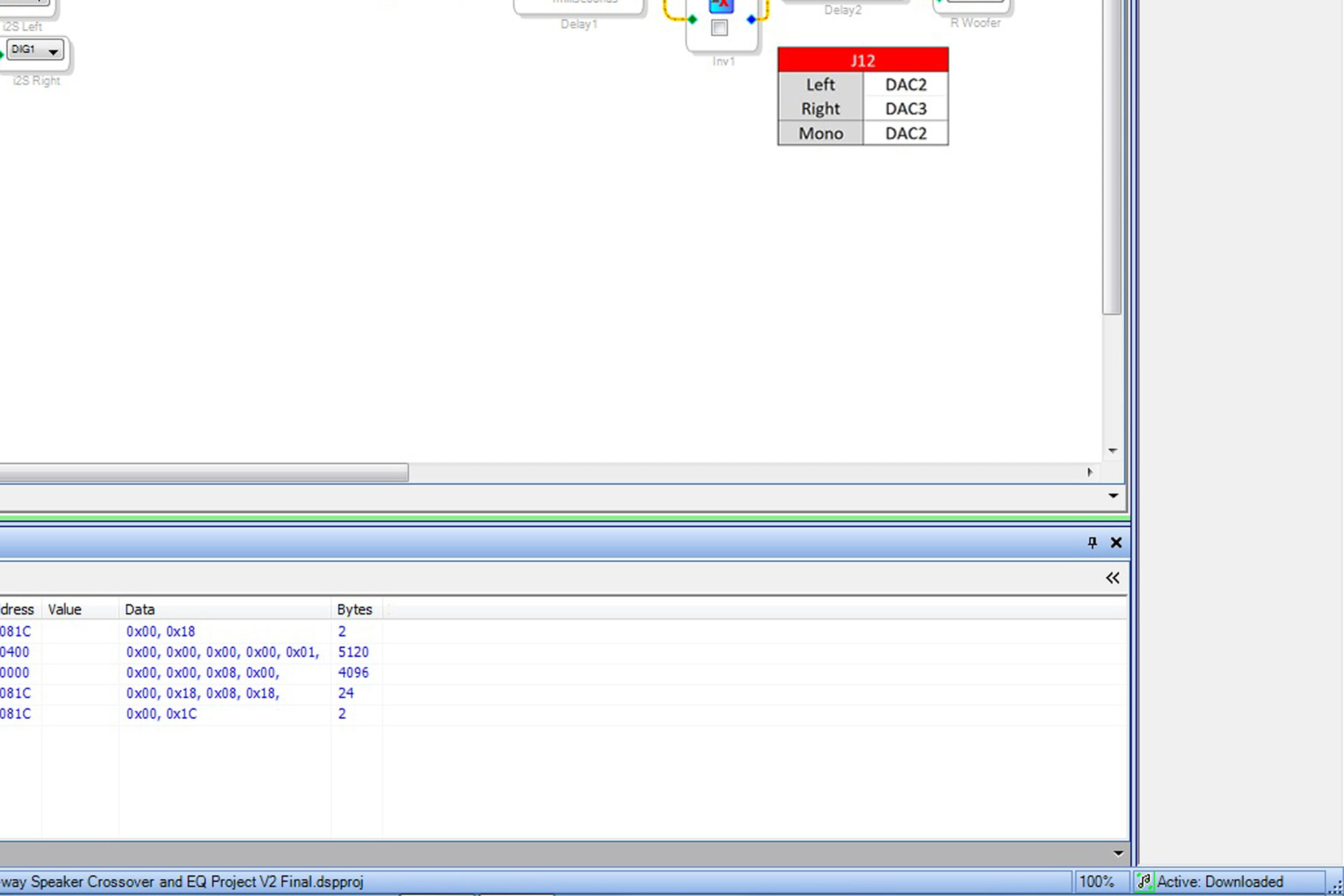
I could then start modifying the settings on the KABD board. At this point any adjustments you make in Sigma Studio are applied to the KABD in real time. None of your changes are permanent at this time.
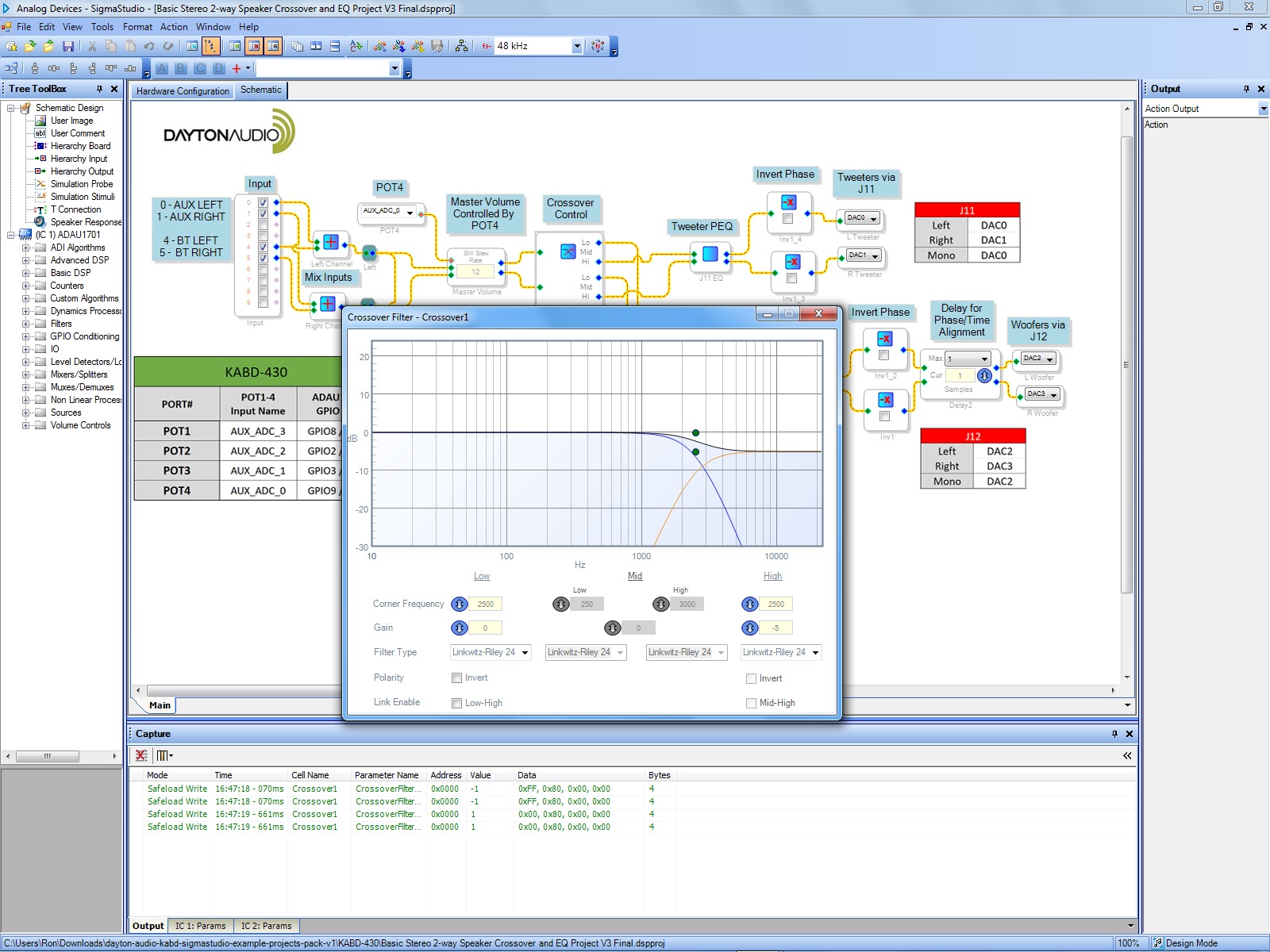
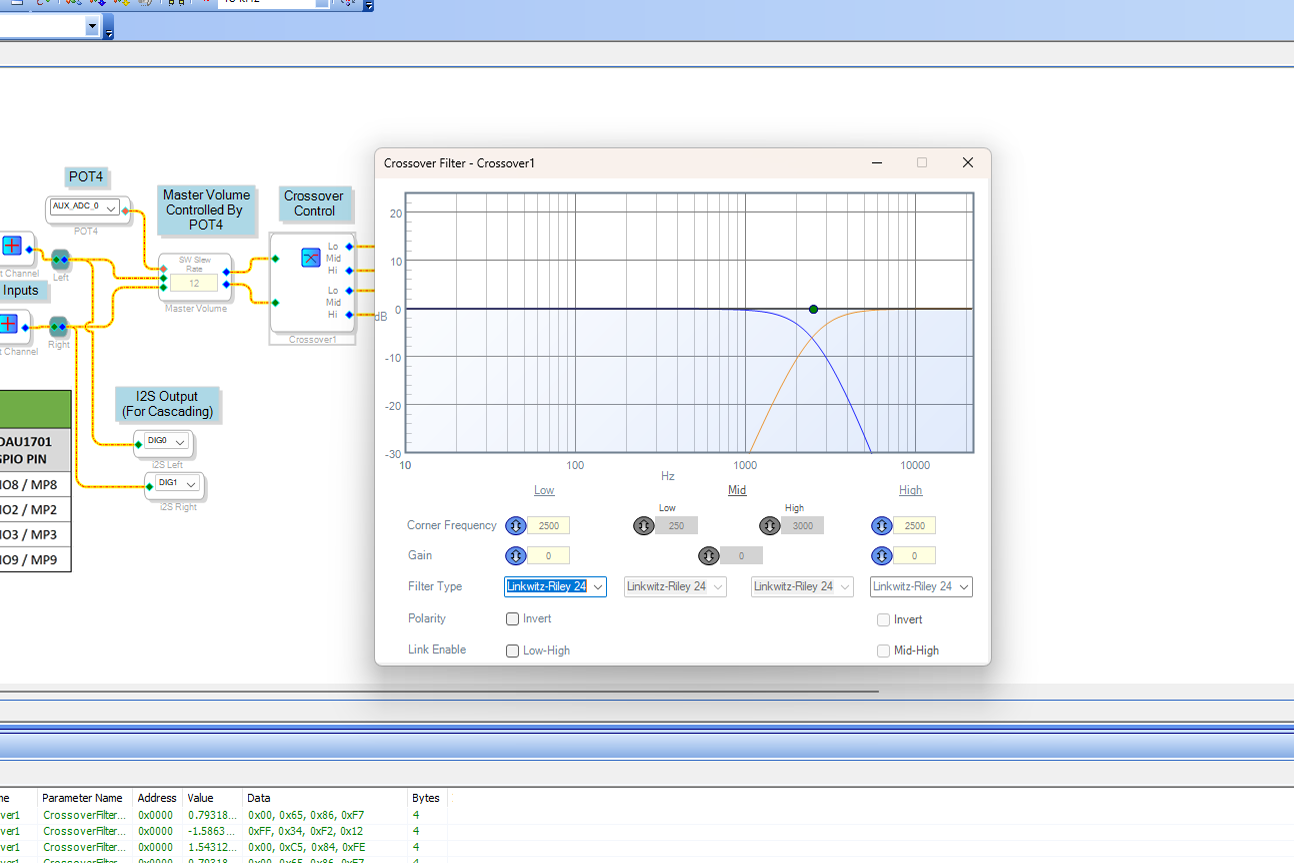
The first thing I set was the crossover point. In my case I chose 24 dB/Oct LR @ 2500Hz. You open the settings window by clicking on the little blue square in the “Crossover Control” box. When I opened the crossover control it was set for a 3000 Hz crossover using Linkwitz Riley 24.
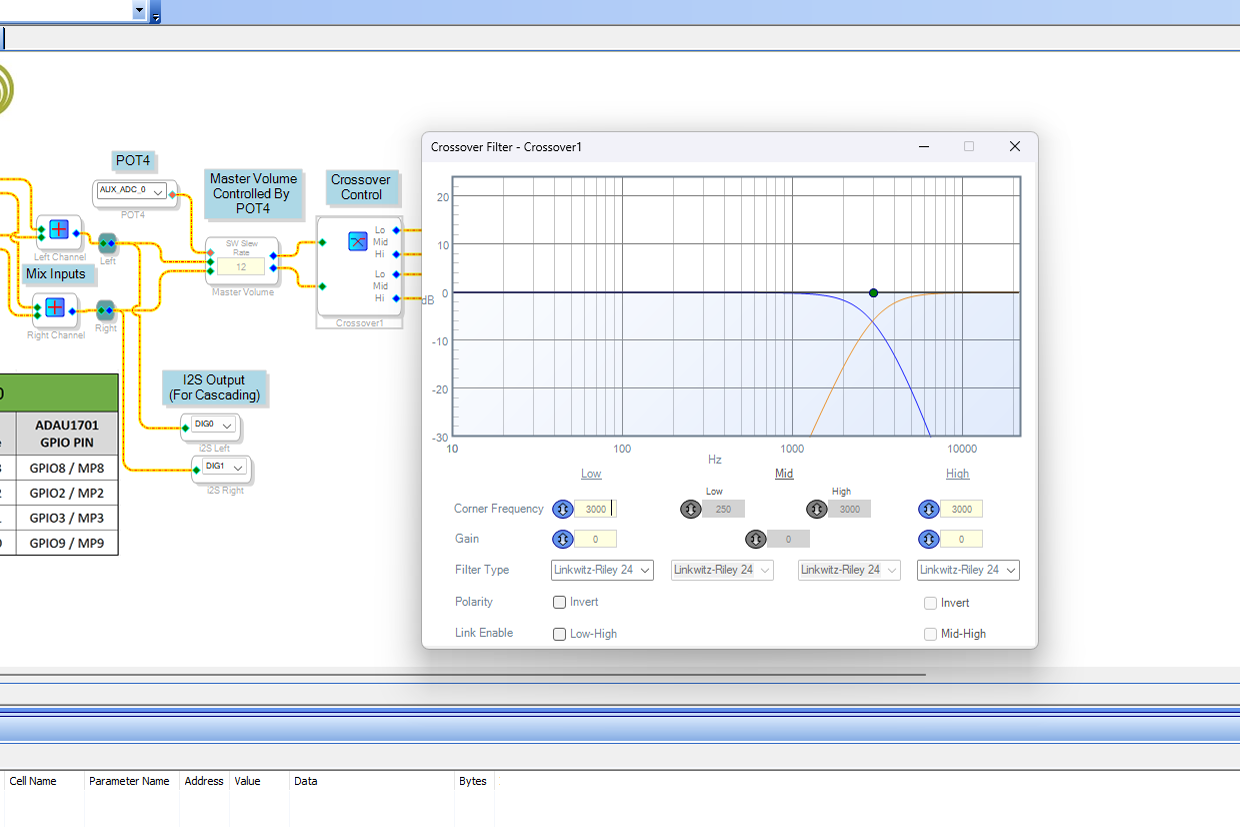
I changed the Low and High corner frequency to 2500 and closed the settings window.
As you make changes it’s a good idea to save them using the Save As and Save items on the File drop down menu. It’s good practice to assign different version numbers.
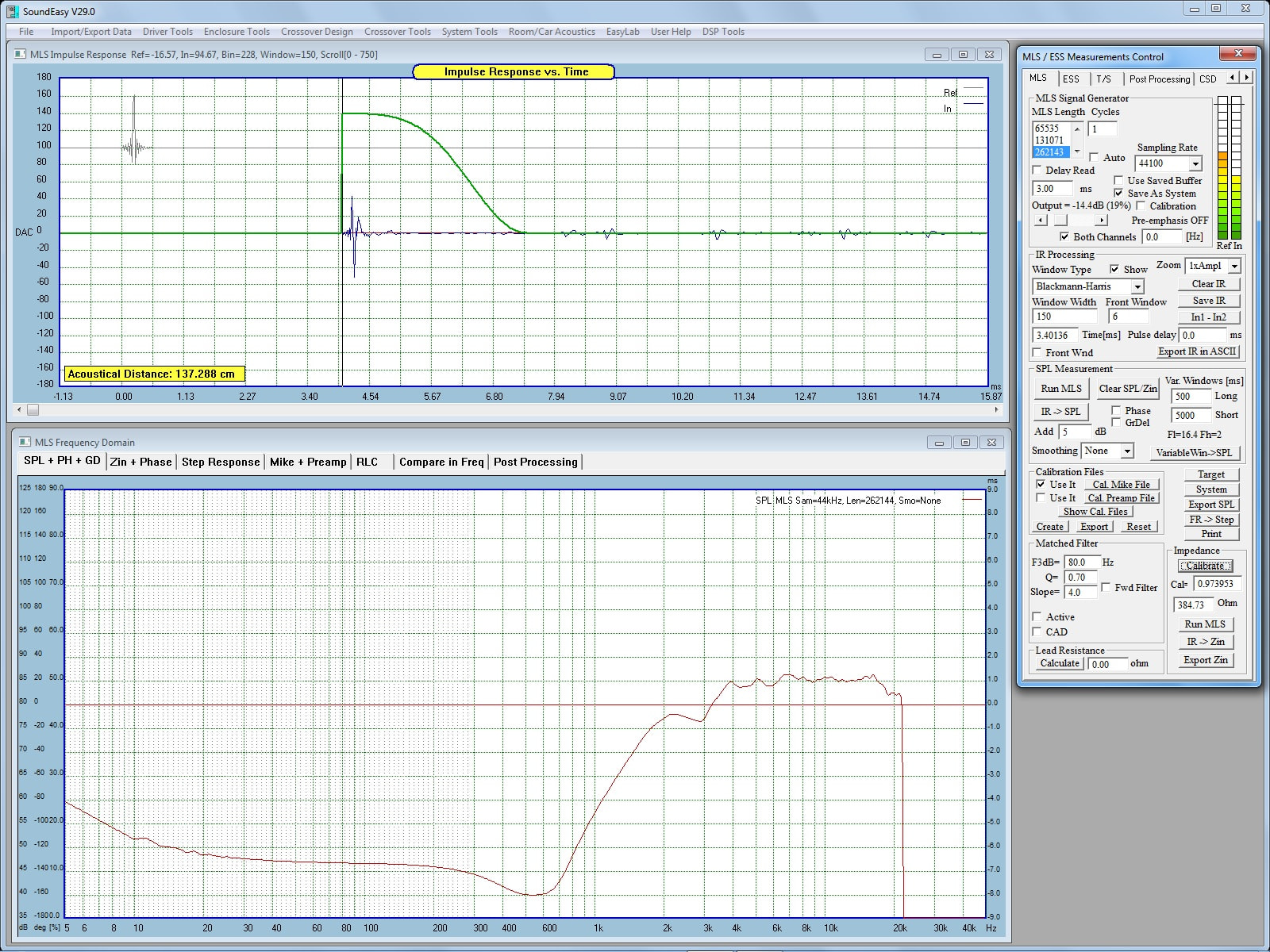
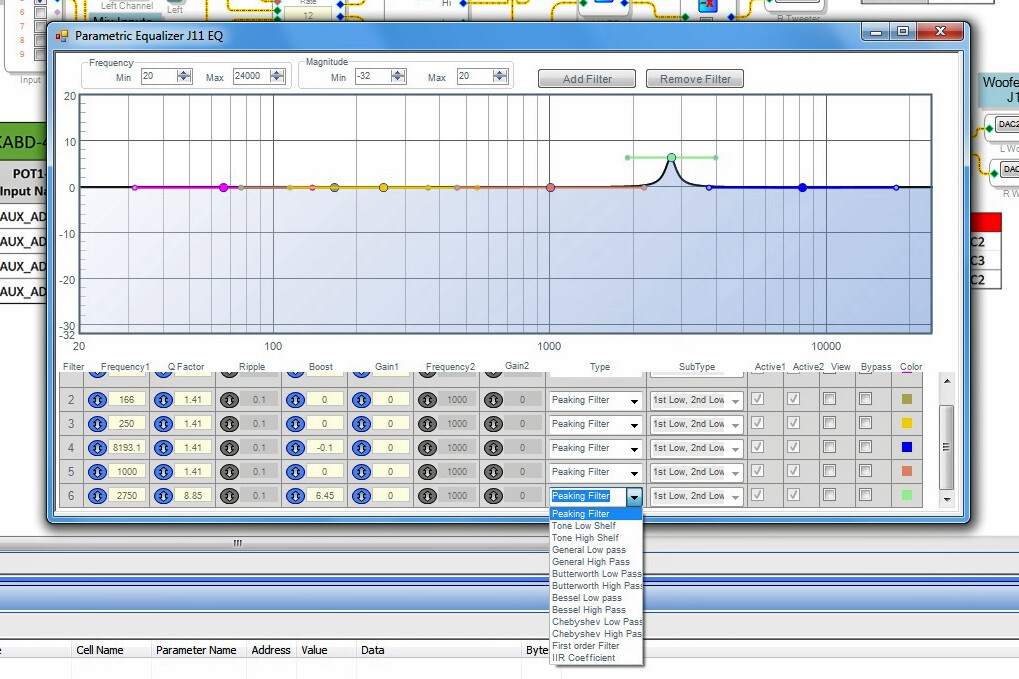
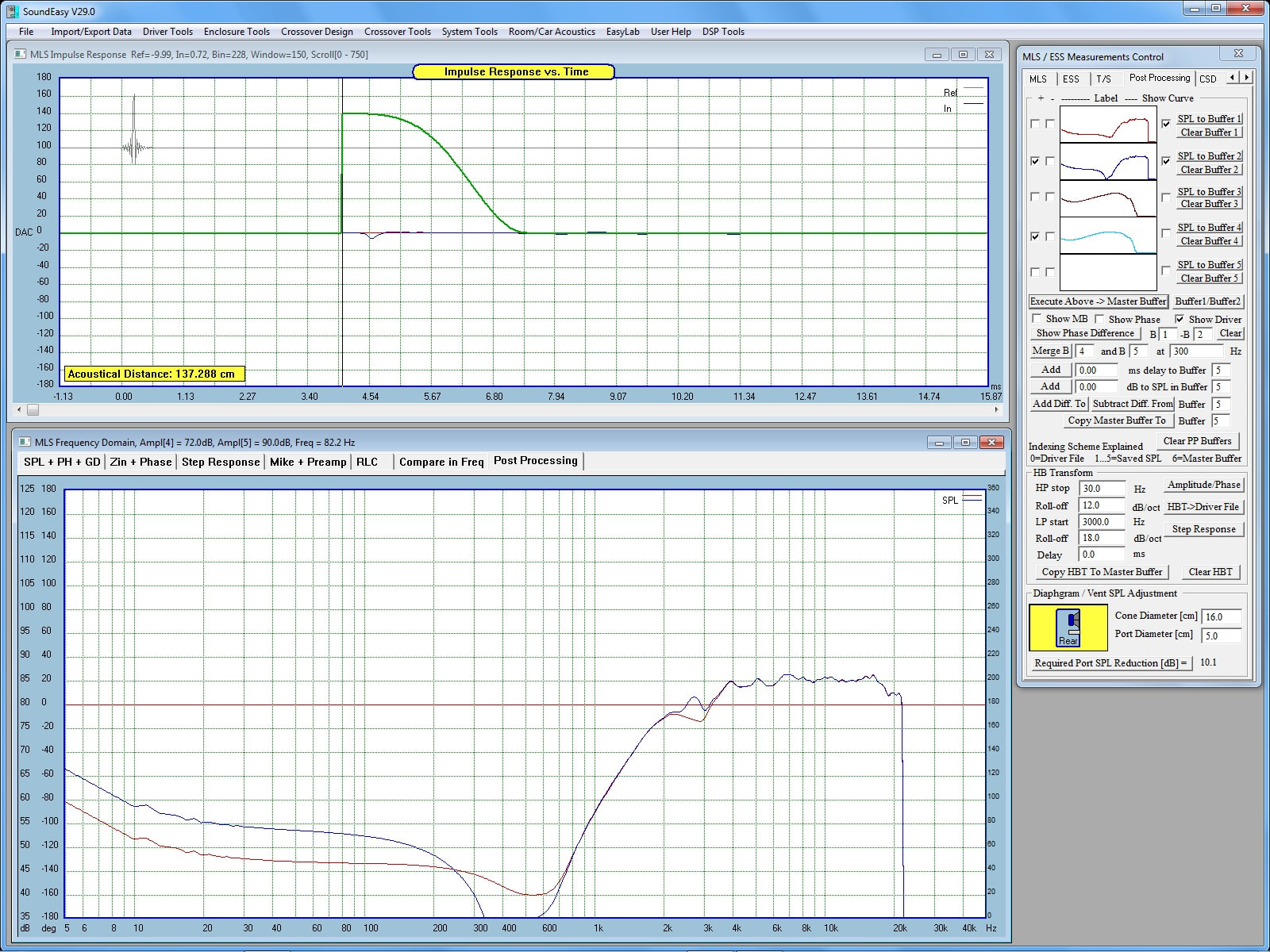
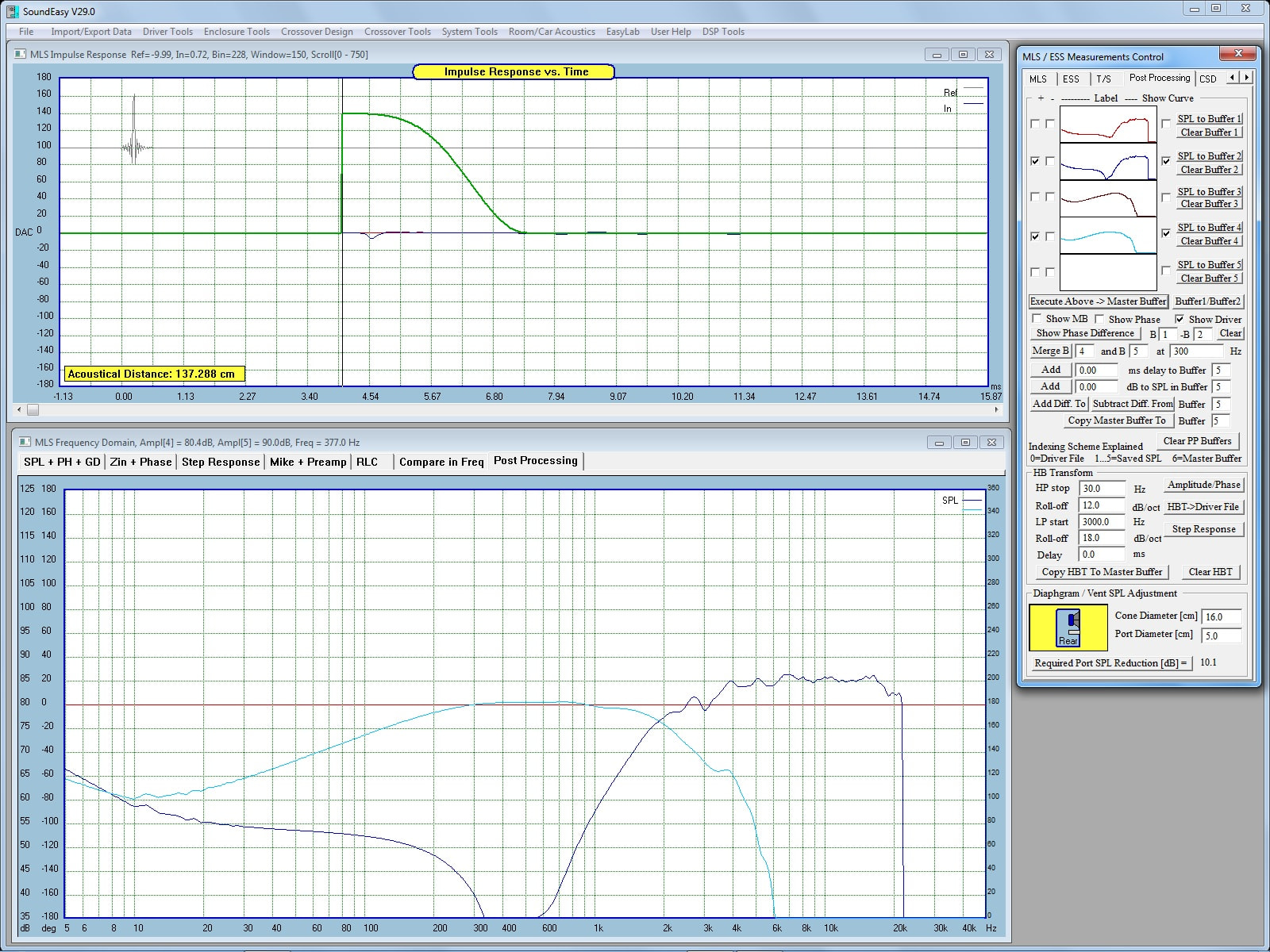
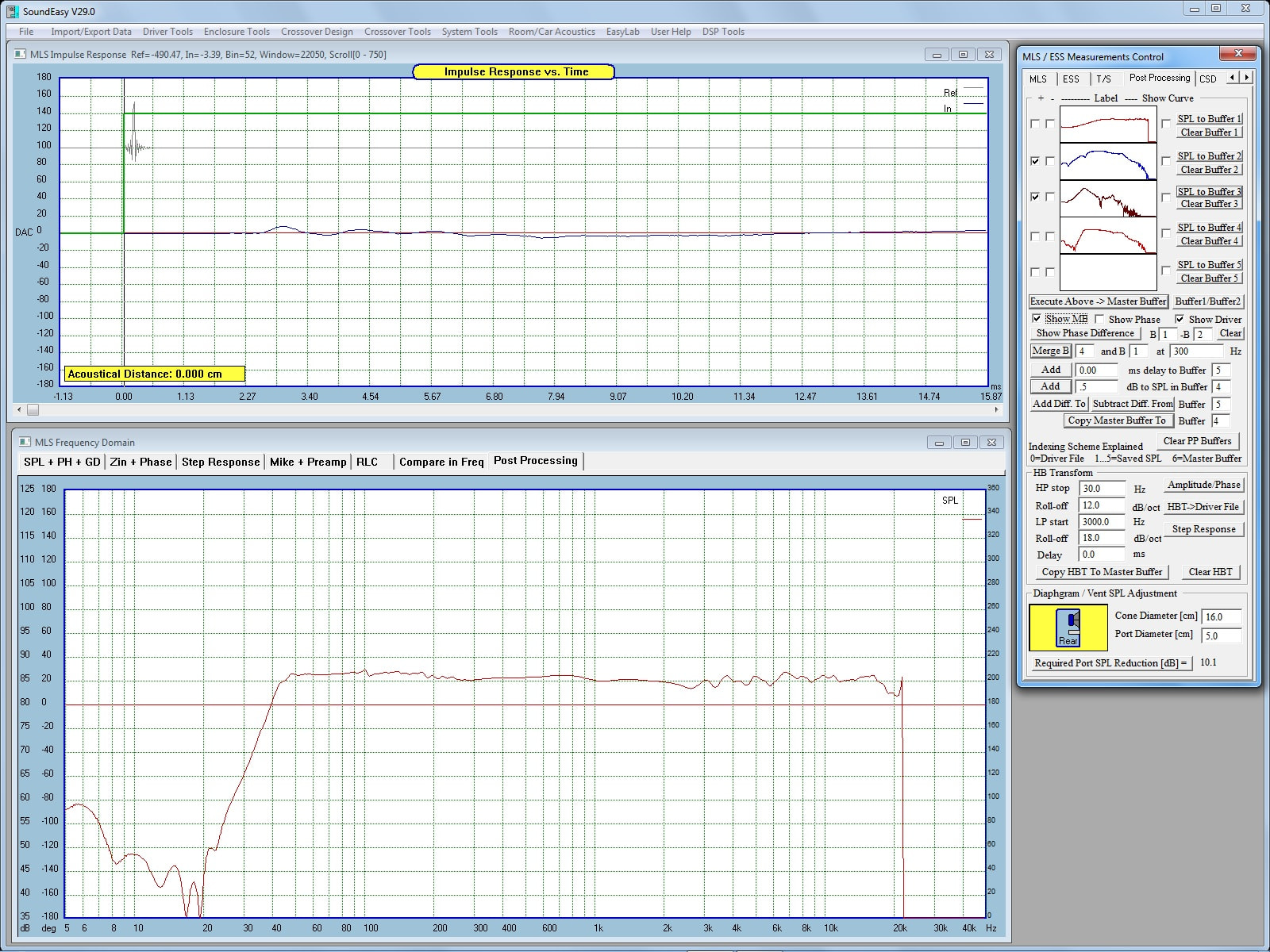
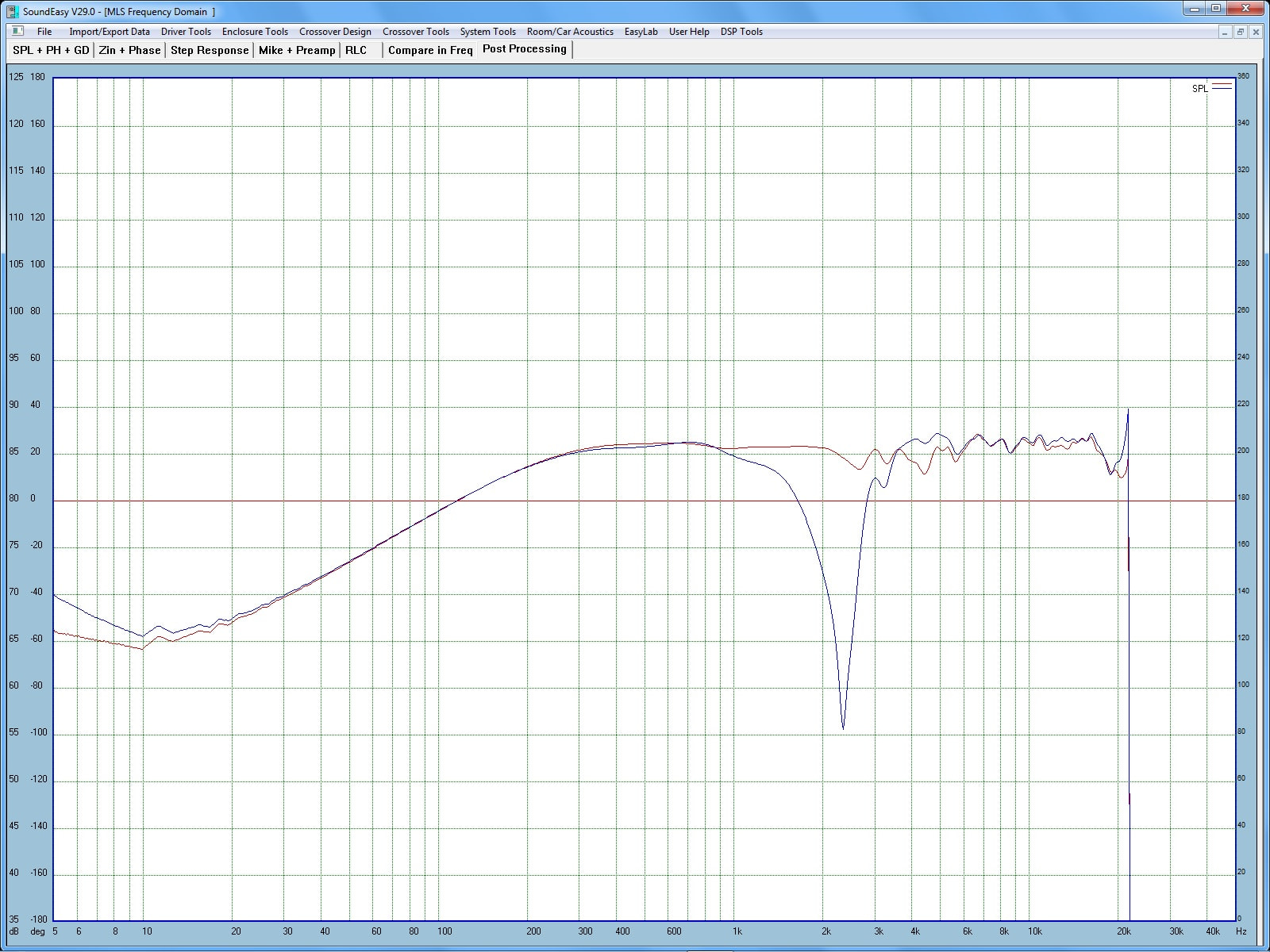
I next measured the tweeter FF response. You can see the effect of the crossover setting and I thought the response looked pretty good except for the dip around 3K.